
01
Fast Local Transfer
Direct Wi-FiTransfer files over your local network without routing through cloud storage servers or consuming internet bandwidth.
Sadasya is crafted to move photos, high-res videos, documents, and directories seamlessly between your phone and Windows PC over your local network — no cables, no logins, and zero cloud detours.
An artisan approach to personal file exchange: direct, dependable, and delightfully straightforward.
Transfer files over your local network without routing through cloud storage servers or consuming internet bandwidth.
Make device pairing simple using QR codes. Point your native phone camera to connect in seconds.
Transfer files in both directions effortlessly — send photos from phone to PC, or drag documents from PC to phone.
Move large collections of photos and high-bitrate video clips between devices in original raw resolution.
Seamlessly share PDFs, office files, ZIP archives, APKs, or full directories across your workspace.
Automatically detects Wi-Fi/Ethernet adapter changes and adapts to new IP addresses seamlessly without restarts.
Your files remain strictly between your own devices. No remote accounts, no cloud indexing, no telemetry uploads.
Designed to make local file transfer immediately obvious and enjoyable for technical and non-technical users alike.
A frictionless five-step rhythm designed for everyday device-to-device sharing.
Download and install the official Sadasya desktop application on your Windows PC.
Open Sadasya. It automatically initializes your local endpoint and displays your pairing code.
Scan the on-screen QR code with your iPhone Camera or Android phone scanner.
Choose the photos, high-definition videos, or documents you wish to send.
Files transfer at top Wi-Fi speeds directly to your computer's Downloads directory.
A restrained, purposeful Windows desktop client crafted for rapid local workflow.
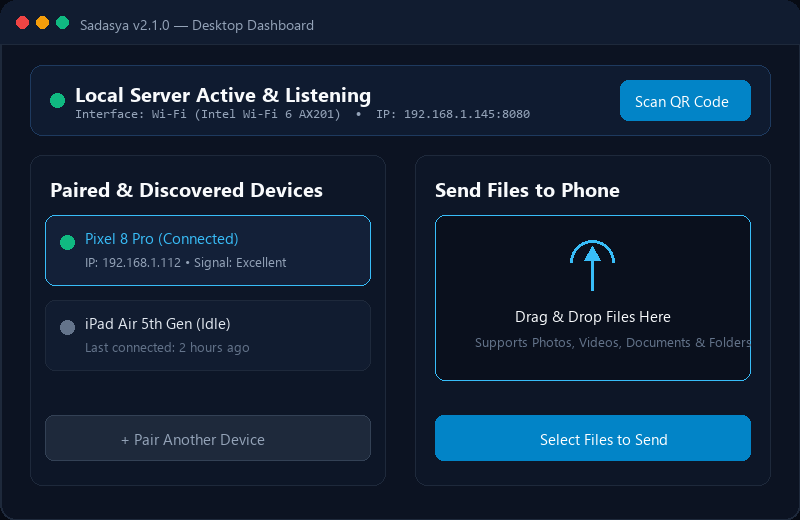
Real-time local IP discovery, connection status, and zero-configuration networking.
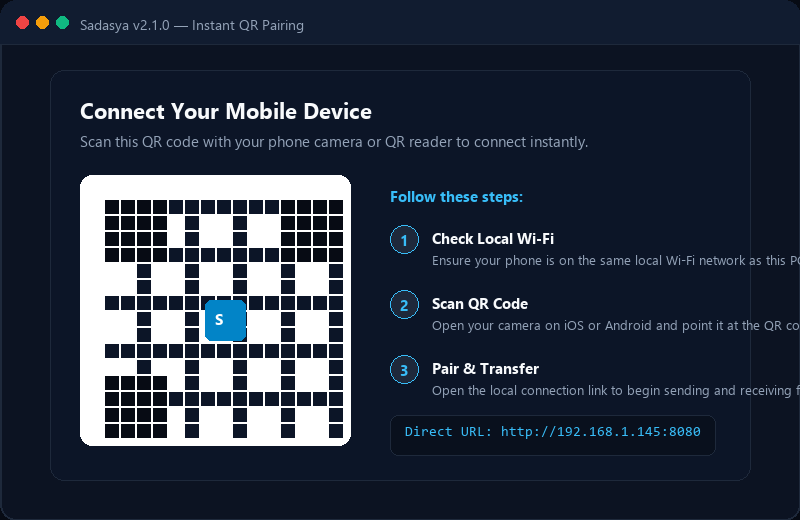
Seamless camera pairing between iOS, Android, and Windows with no account registration.
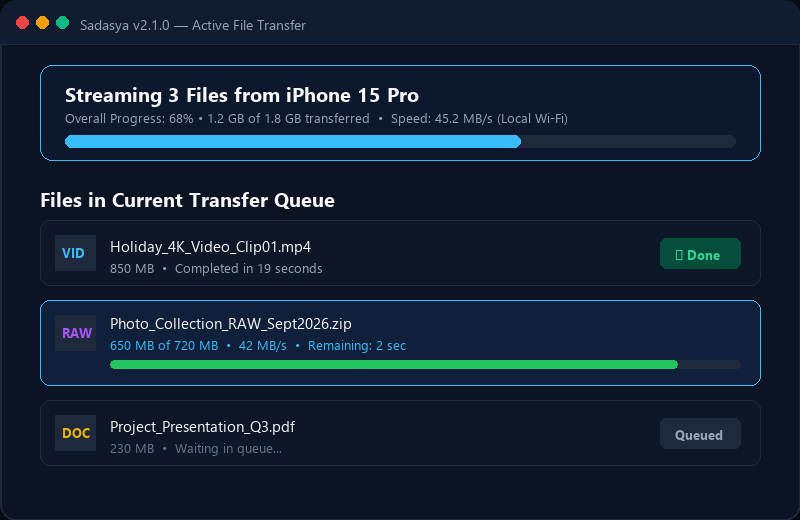
High-speed peer-to-peer Wi-Fi file streaming without cloud intermediaries or file caps.
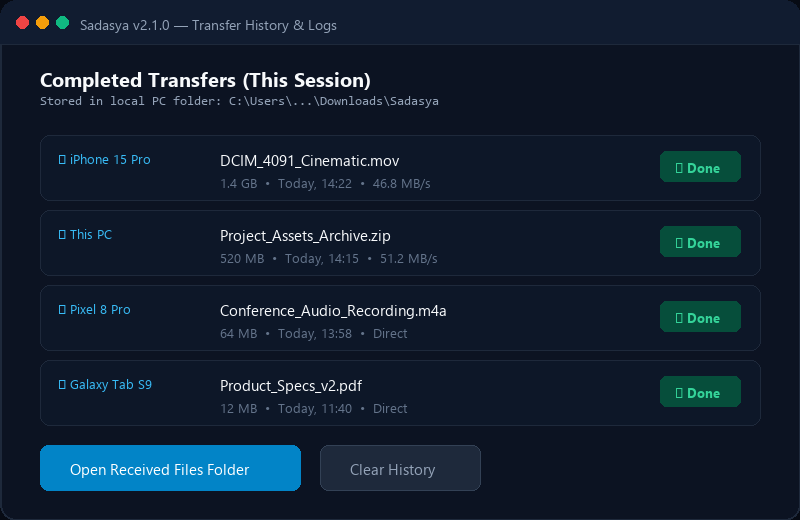
Complete transfer registry with direct shortcuts to open received files in Windows Explorer.
Get the latest official installer for Windows 10 & 11 with full local network capabilities.
Engineered for Windows 10 & 11 (64-bit Architecture)
A straightforward setup walkthrough for your Windows PC.
Locate and open Sadasya-2.1.0-Setup.exe in your Downloads directory.
Follow the lightweight setup wizard instructions to install the desktop application.
Open Sadasya from your Windows Start Menu or Desktop shortcut.
Scan the on-screen QR code with your mobile camera to initiate transfers.
Windows may display a routine security notice for software downloaded from the internet. If Windows SmartScreen appears, verify that you downloaded the installer directly from the official website (https://sadasya.online/) before proceeding.
| Component | Specification |
|---|---|
| Operating System | Windows 10 / Windows 11 (64-bit) |
| Architecture | x64 compatible system architecture |
| Network | Local Wi-Fi or LAN connection shared with mobile device |
| Internet | Required for initial installer download & update checks; file transfer is 100% local |
| Disk Storage | Sufficient storage space for installation and transferred files |
Sadasya is designed for local file sharing. During a local transfer, files are intended to move between your connected devices over the local network rather than being uploaded to a third-party cloud storage service.
Files stream directly across your own local Wi-Fi or router connection.
No remote third-party servers storing or inspecting your files during local transfers.
All binaries and updates are published directly on sadasya.online.
Transparent changelogs and version tracking for every update.
SHA-256 can be used to verify that the downloaded installer matches the checksum published by Sadasya.
Get-FileHash .\Sadasya-2.1.0-Setup.exe -Algorithm SHA256
Current version notes and performance improvements.
Answers regarding local network transfer, mobile pairing, compatibility, and data privacy.
Sadasya is a local file-sharing application designed to help users transfer photos, videos, documents, and other files between a Windows PC and mobile devices over your local network.
It eliminates the need for flash drives, USB cables, or third-party cloud uploads when sharing files within your home or office Wi-Fi.
Yes. The current desktop release of Sadasya is available as a free download from our official website for Windows users.
You can install it directly and use it without subscription fees or account signups.
Yes. Sadasya is purpose-built to support phone-to-PC transfers.
Once your mobile device is paired via the QR code, select photos, videos, or files on your phone to stream them directly into your designated PC download directory.
Yes. Sadasya supports two-way transfer.
You can drag and drop or browse files on your Windows desktop to send them directly to your connected mobile phone over the local link.
Local file transfer is designed to work over your local network without consuming your internet data quota.
An active internet connection is only needed initially to download the installer or to check for software updates.
Yes. Both your Windows PC and your mobile device must be connected to the same local Wi-Fi network or LAN subnet.
This enables the devices to discover and connect with each other directly across your local router without passing through the internet.
No. Sadasya local file transfers are designed to take place directly between your connected devices over the local network.
Your photos, videos, and files are not routed to or stored on third-party cloud storage servers during local transfers.
Yes. Android devices connect easily via the QR pairing workflow.
Open your camera or QR scanner on Android, scan the code shown on your Sadasya PC screen, and open the local interface in Chrome or your preferred mobile browser to start transferring files immediately.
Yes. iPhone and iPad devices are fully supported.
Simply open the native iOS Camera app, point it at the QR code on your PC, tap the yellow banner, and start sending high-resolution photos, 4K videos, or files directly to your Windows desktop.
The current desktop release is for Windows (Windows 10 and Windows 11).
Support for additional operating systems may be considered in future releases as the product develops.
You can download the newest installer anytime from our official website at sadasya.online or check the Latest Release section.
Running the latest installer will automatically upgrade your existing installation while preserving your local configuration.
For help with installation, networking, or troubleshooting, please visit our Contact & Support section or email our team directly at support@sadasya.online.
We aim to respond to technical queries promptly.
Try adjusting your search terms or view all categories.
Can't find the answer you're looking for? Reach out to our technical support team for personalized assistance.
Sadasya is built to make everyday file sharing between personal devices easier.
Instead of relying on complicated workflows, Sadasya focuses on a straightforward experience for moving photos, videos, documents and other files between devices connected to the same local network.
Having trouble installing or connecting Sadasya? Contact our support team for assistance.
We are here to assist with any questions regarding installation, network configuration, or file transfers.